CASE STUDY · PERSONAL LAB PROJECT
Hybrid Identity & Cloud Infrastructure Deployment
A hybrid deployment I built and administer end to end — integrating an on-prem Windows Server environment with Azure. This walks through the architecture and the ten screenshots proving each piece works: identity sync, secure connectivity, file replication, and centralized governance.
Hybrid Infrastructure Layout
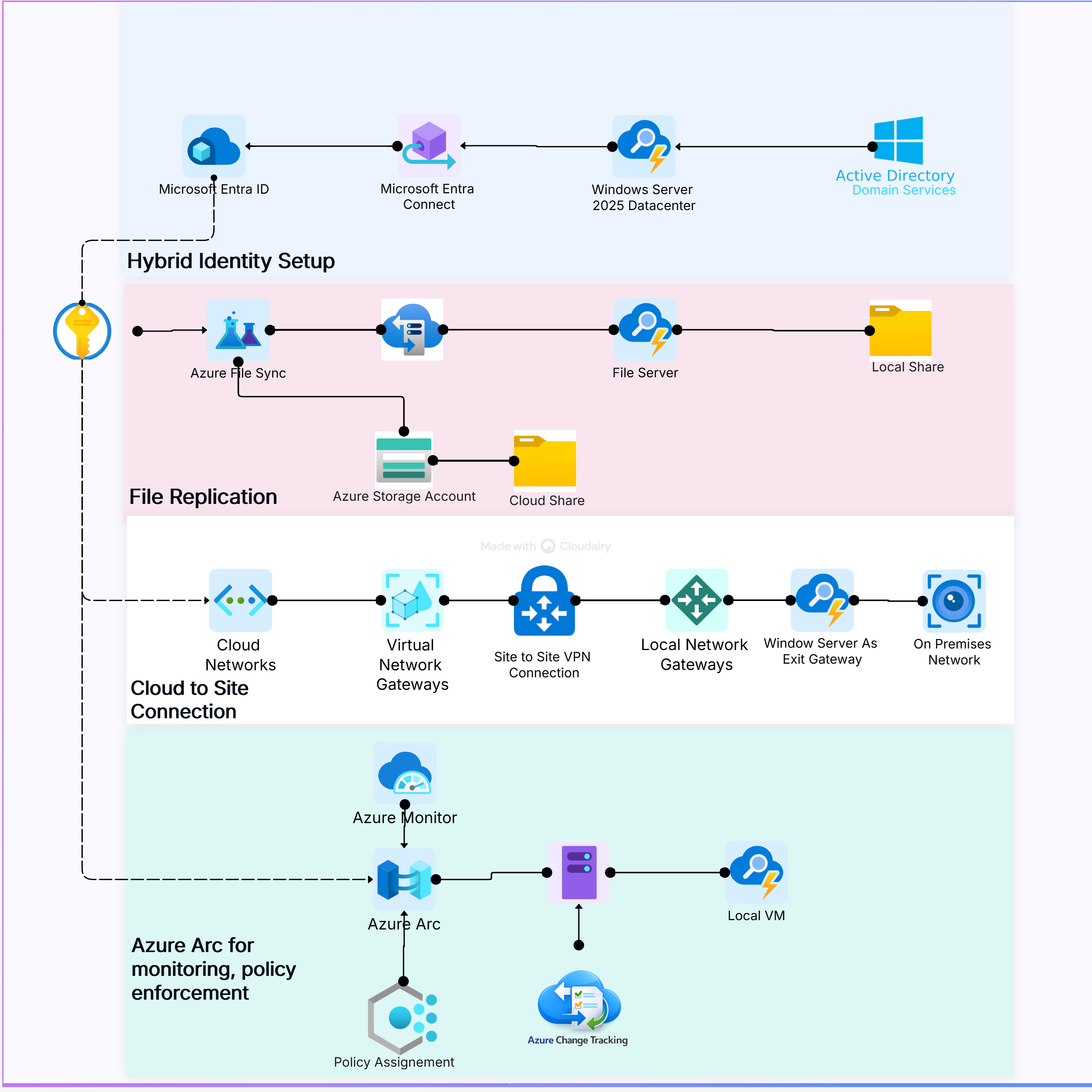
This diagram represents a hybrid deployment integrating on-prem Windows Server with Azure services. Identity sync is handled through Microsoft Entra Connect, file replication through Azure File Sync, network connectivity via Site-to-Site VPN, and monitoring via Azure Arc and Azure Monitor.
Site-to-Site VPN Connection
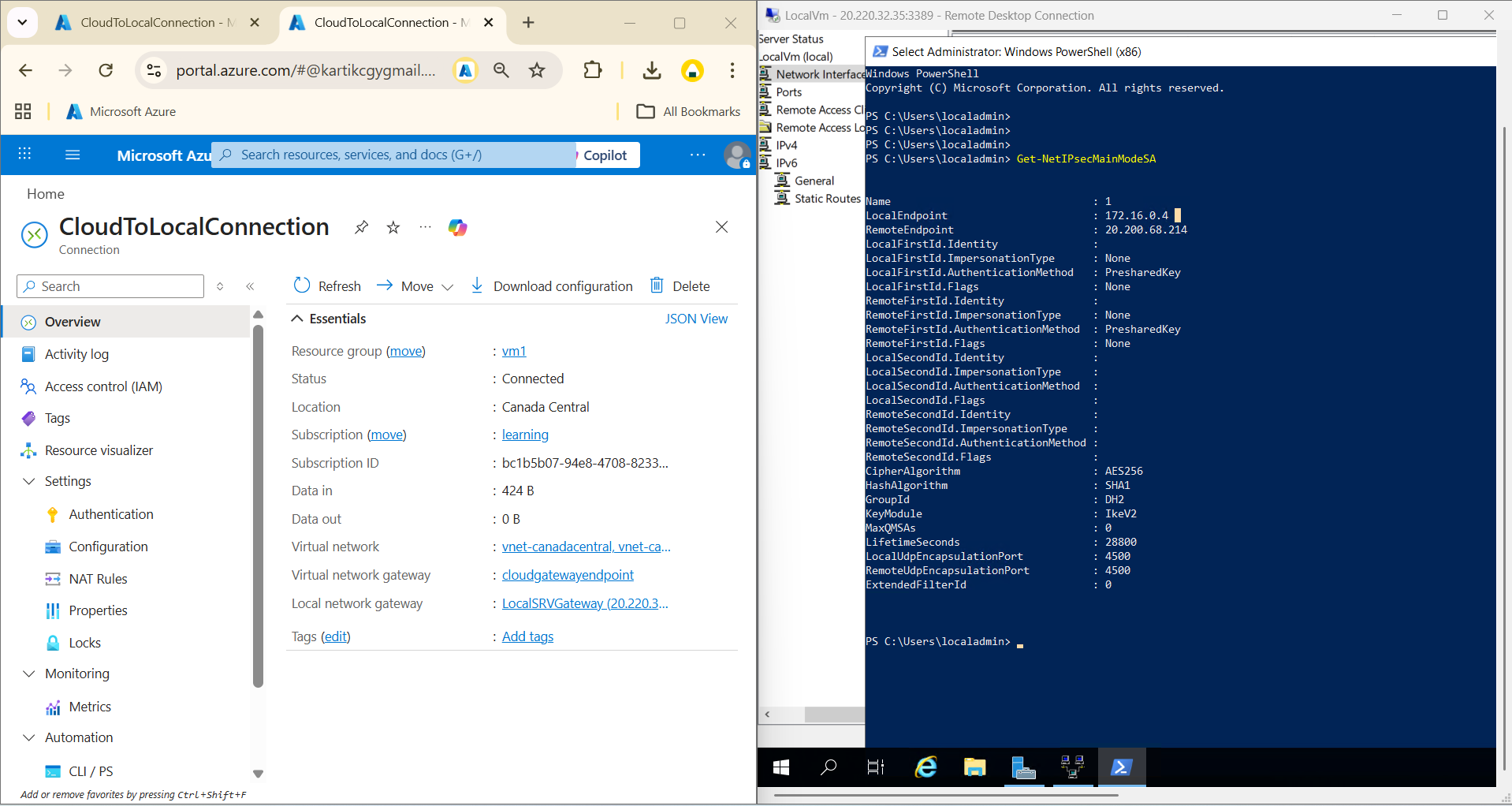
Configured a Virtual Network Gateway and Local Network Gateway in Azure, then established an IPsec/IKEv2 tunnel using a pre-shared key with RRAS on Windows Server. Connection status shows Connected, confirming secure private communication.
- Connection status: Connected · resource group vm1 · Canada Central
- IKEv2 · AES256 cipher · SHA1 hash · pre-shared key authentication
- NAT-T over UDP 4500, tunnel lifetime 28,800 seconds
On-Prem Active Directory Setup
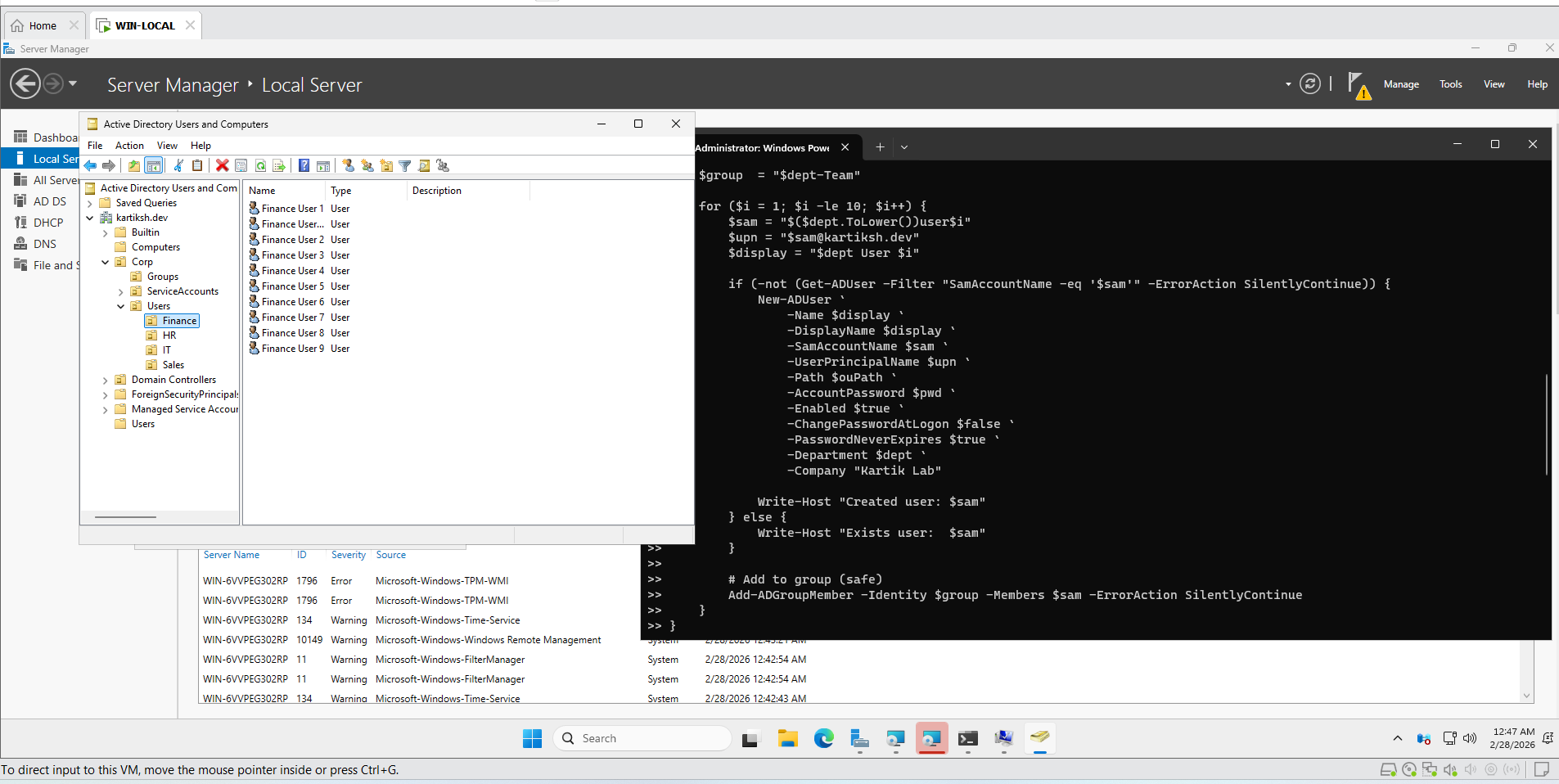
Deployed AD DS on Windows Server 2025 Datacenter. Created Organizational Units and automated bulk user provisioning via PowerShell. Users structured for synchronization to Microsoft Entra ID.
- Domain: kartiksh.dev · department OUs: Finance, HR, IT, Sales
- PowerShell loop provisions users idempotently — checks for existing accounts before creating
- Sets department, company, and password policy attributes; adds each user to a department security group
Microsoft Entra Connect Sync
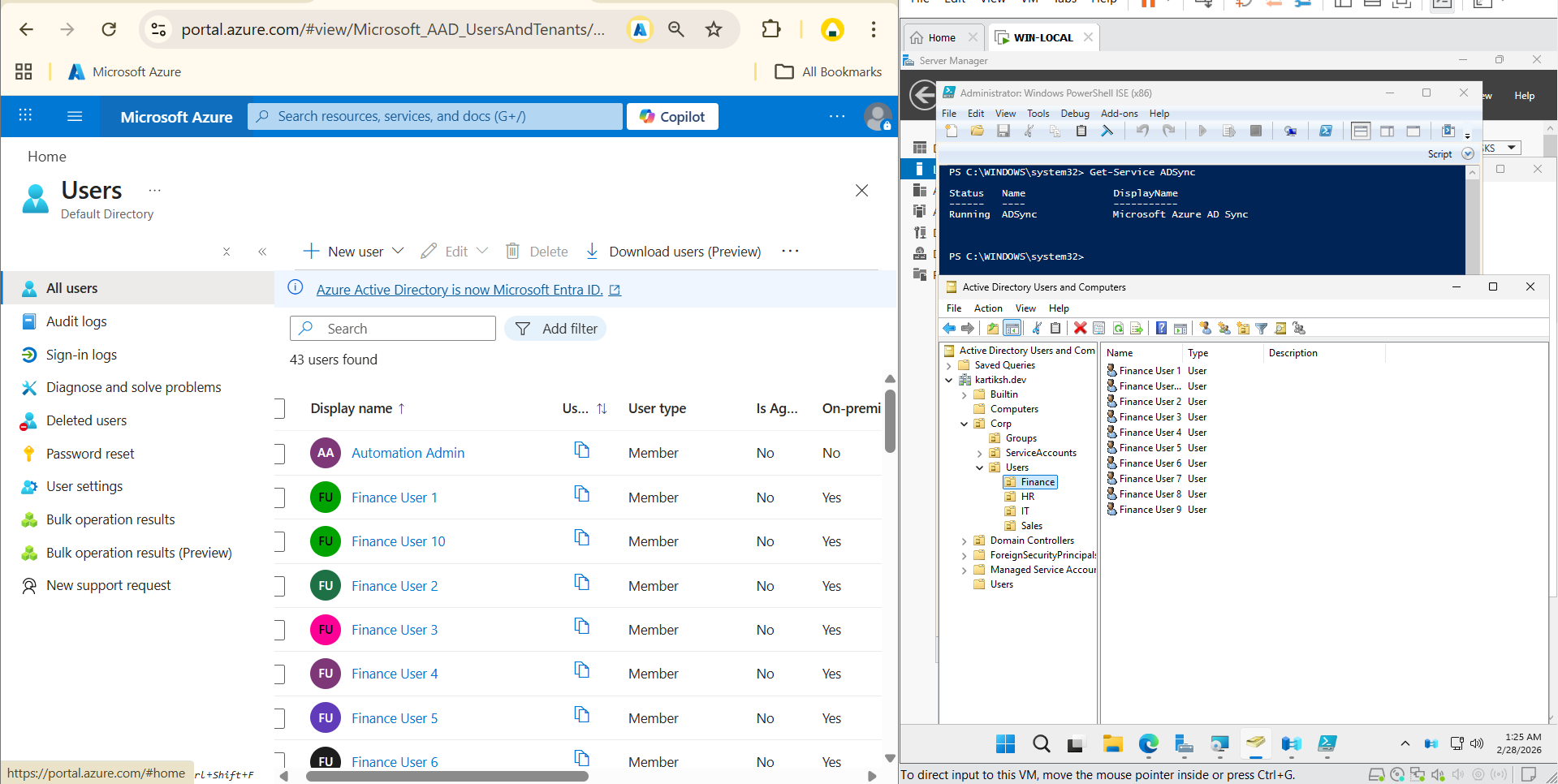
Installed and configured Microsoft Entra Connect on the domain controller. Directory sync service (ADSync) running and verified. Azure portal confirms on-prem users synchronized successfully.
- 43 users found in Microsoft Entra ID, including the Finance OU accounts
- Synced accounts flagged "On-premises: Yes" — confirming hybrid sync, not cloud-only creation
- ADSync service verified Running via PowerShell
Azure File Sync Configuration
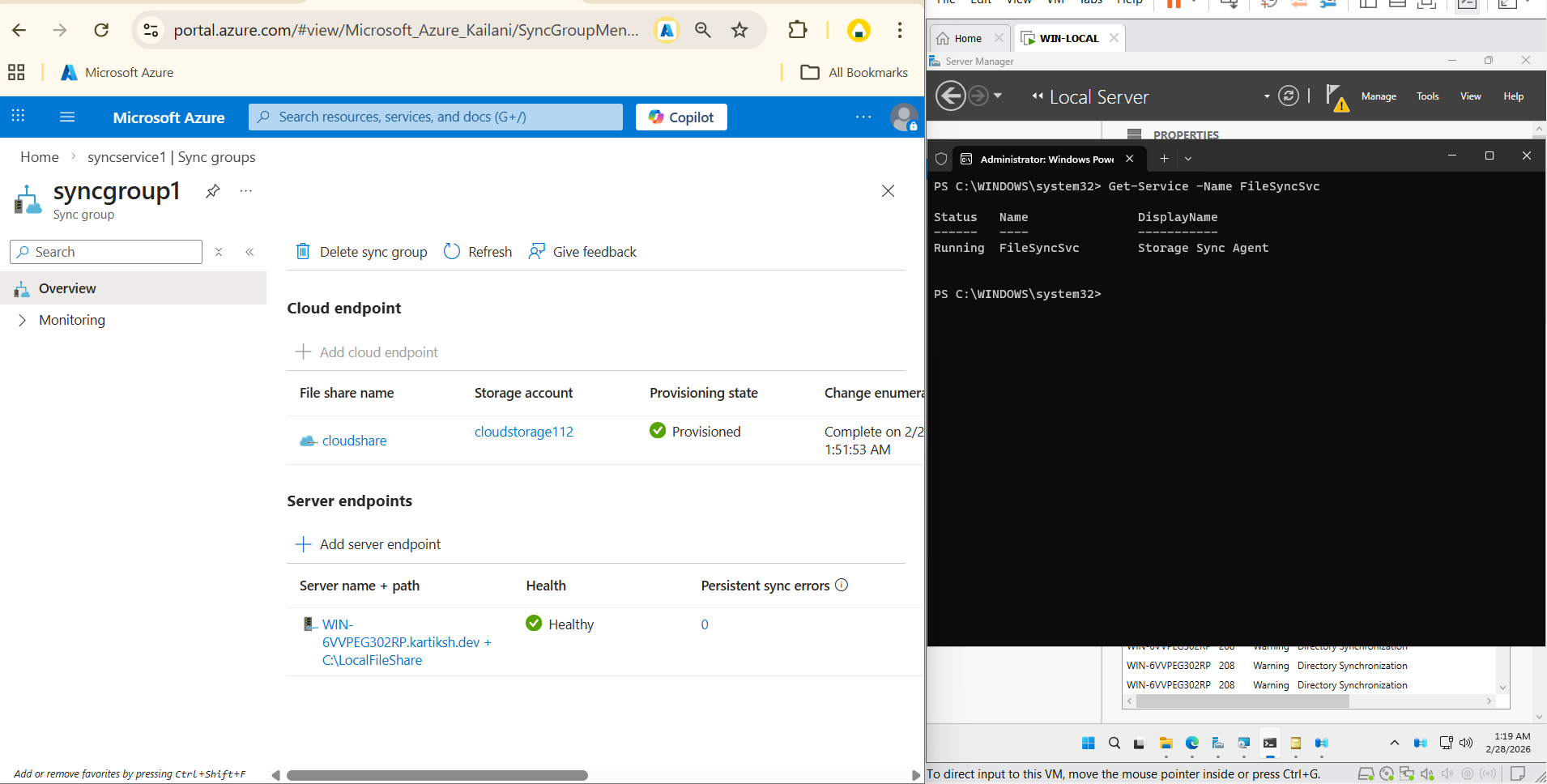
Created a Sync Group with a Cloud Endpoint linked to an Azure Storage Account. Installed and registered the Storage Sync Agent on Windows Server. Server endpoint mapped to C:\LocalFileShare, health status Healthy.
- Sync group "syncgroup1" · cloud endpoint: storage account cloudstorage112, share "cloudshare"
- Server endpoint: WIN-6VVPEG302RP.kartiksh.dev → C:\LocalFileShare · Health: Healthy · 0 persistent sync errors
- FileSyncSvc ("Storage Sync Agent") verified Running via PowerShell
Azure File Share Verification
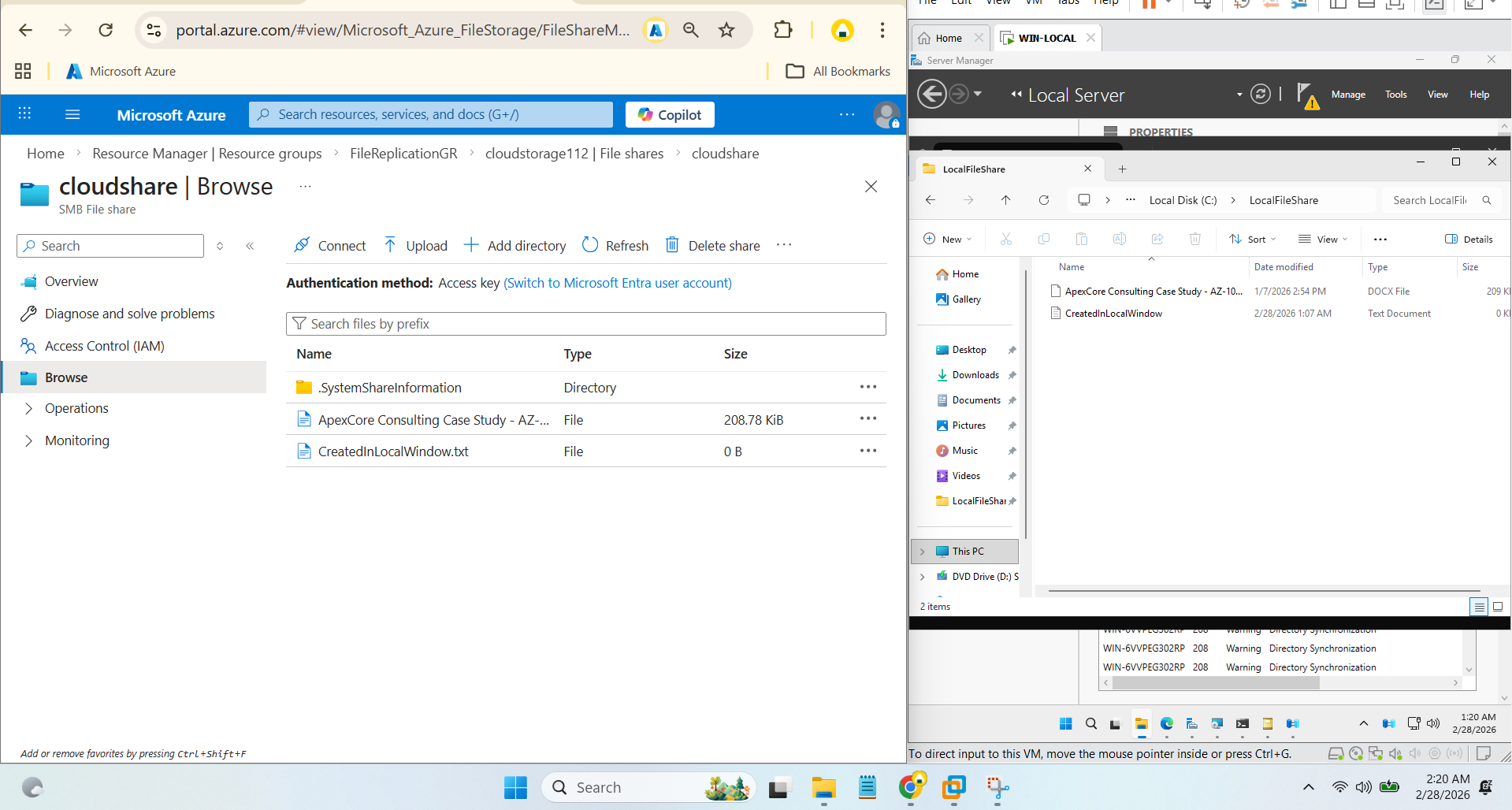
Provisioned an Azure Storage Account and SMB file share. Verified file replication from the local folder to the Azure cloud share. The portal Browse view confirms successful synchronization.
- Resource group FileReplicationGR · storage account cloudstorage112 · share "cloudshare"
- A test file created locally appears in the Azure Storage browse view within minutes
- Confirms live, working bi-directional sync — not just a one-time upload
Azure Arc Onboarding
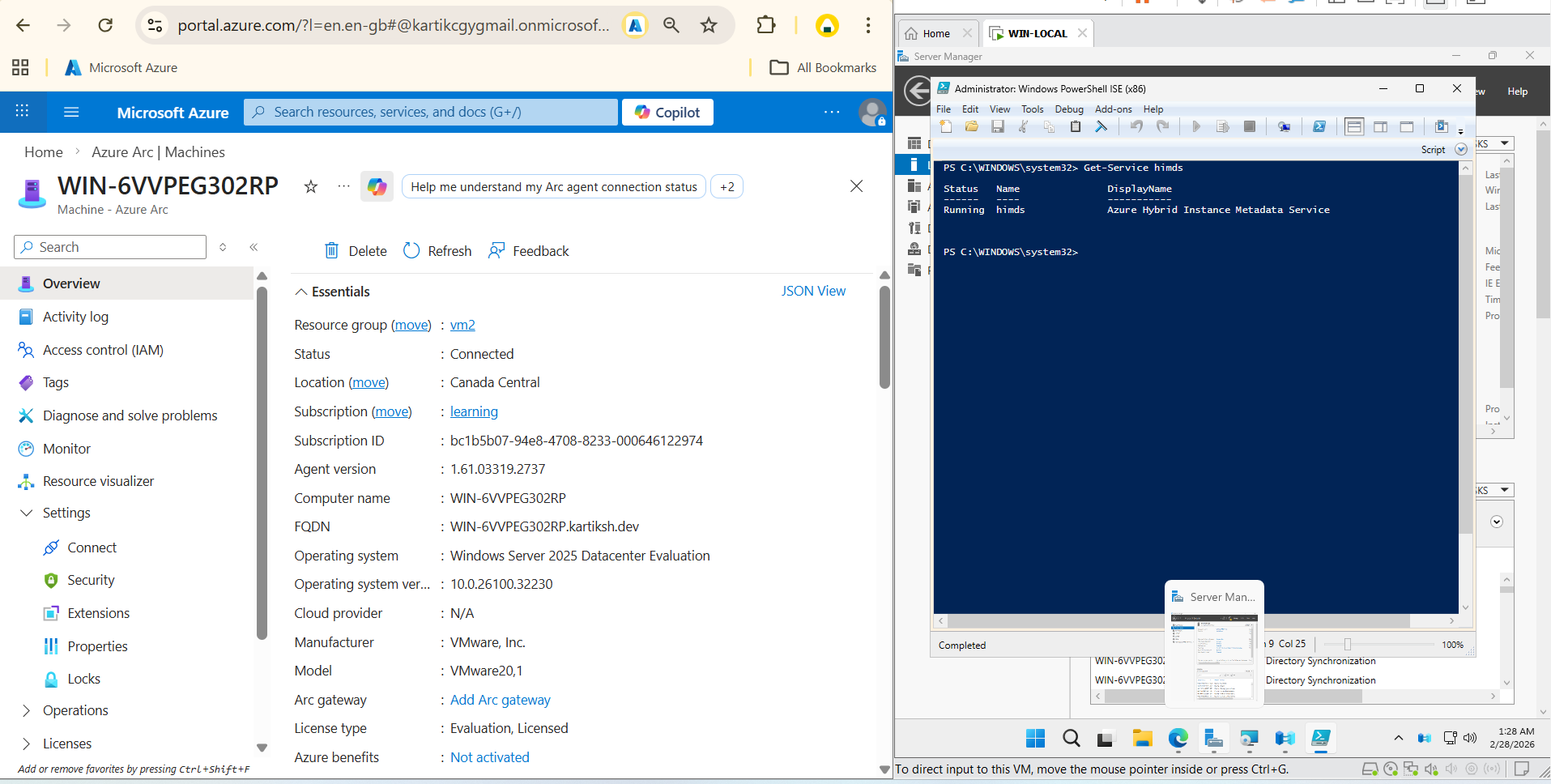
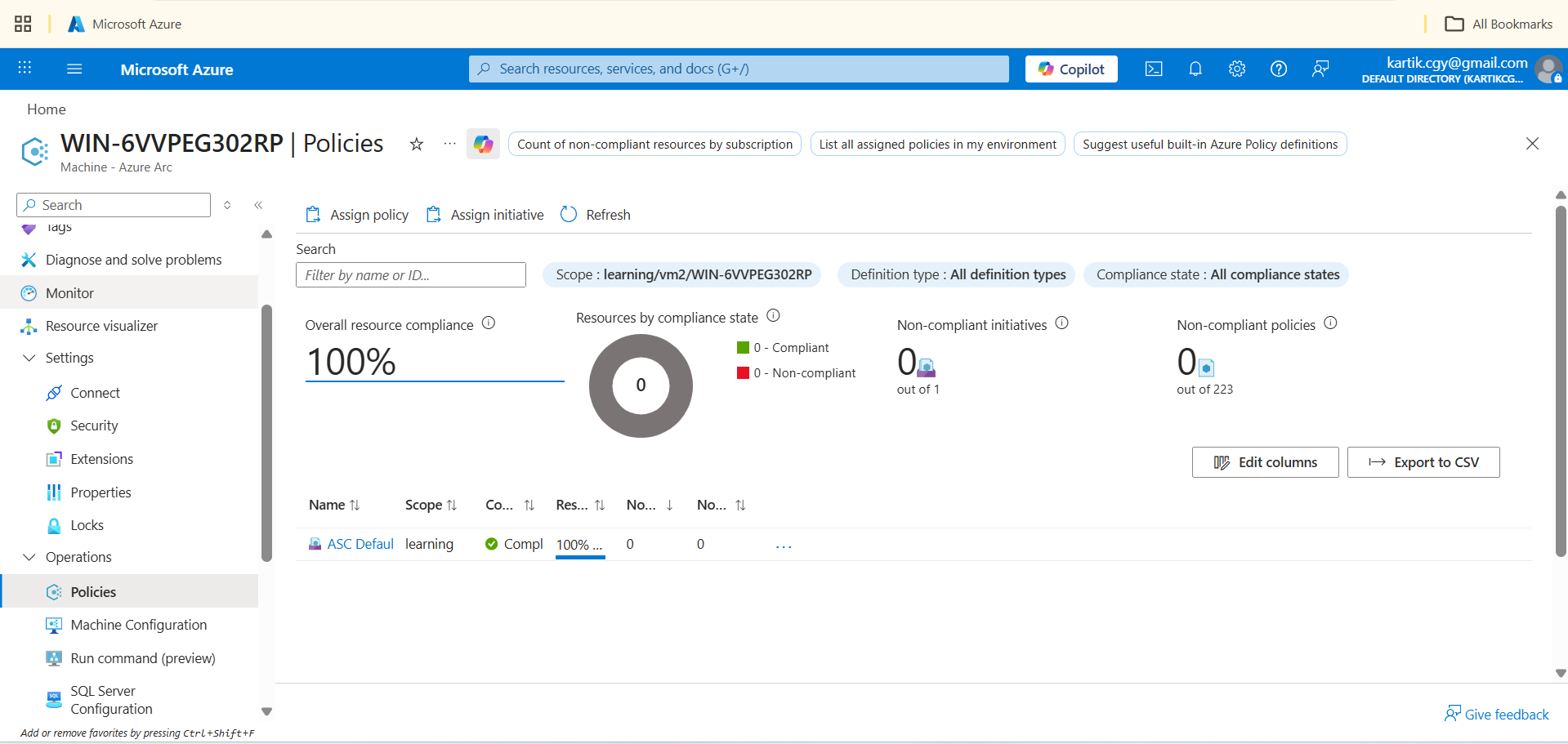
Installed the Azure Arc agent on the on-prem Windows Server. Verified the himds service running and machine status Connected. The server is registered in Azure under Arc-enabled machines — and inherits governance the moment it lands, including Azure Policy compliance evaluation.
- Status: Connected · resource group vm2 · Canada Central · agent v1.61.03319.2737
- himds ("Azure Hybrid Instance Metadata Service") verified Running via PowerShell
- Azure Policy's built-in "ASC Default" initiative (223 policies) evaluated against the server — 100% compliant
Change Tracking & Monitoring
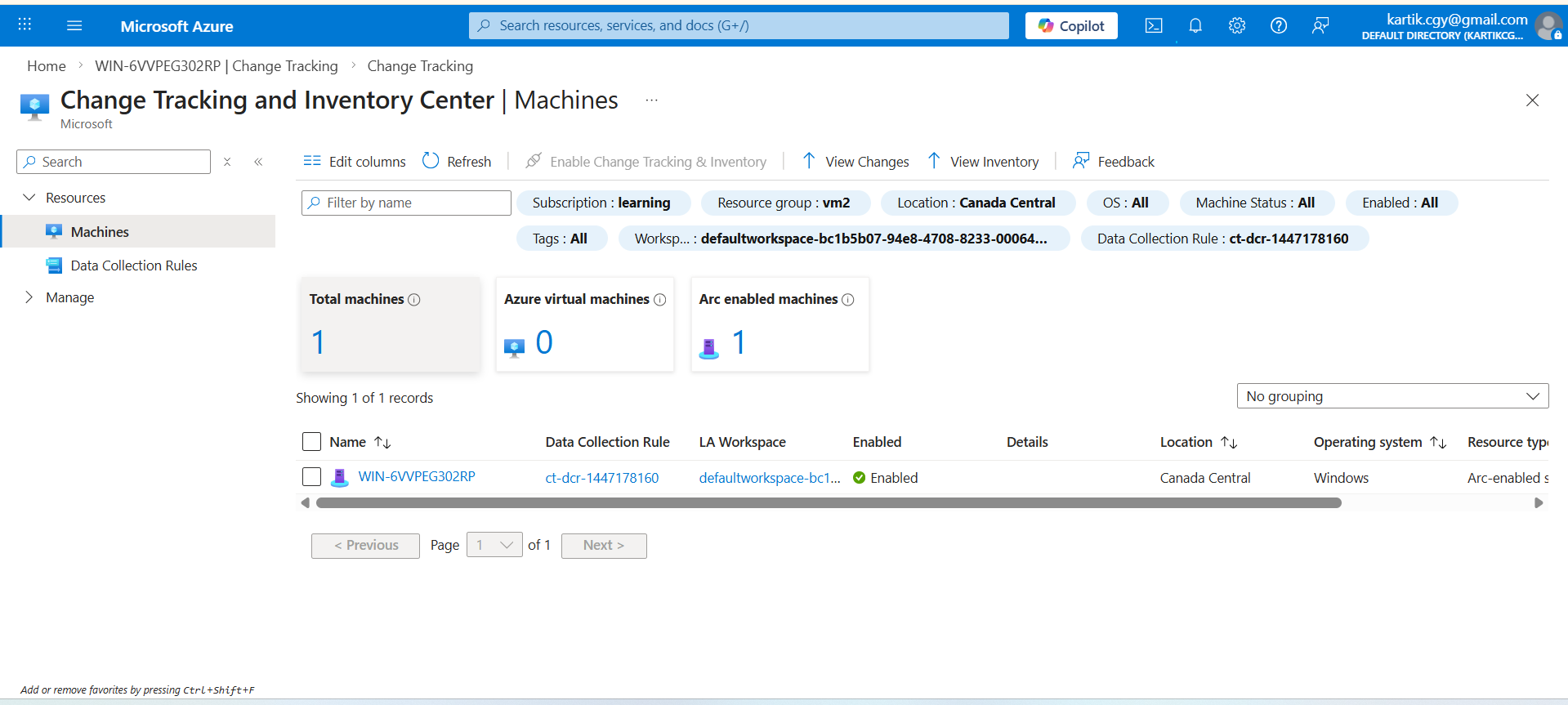
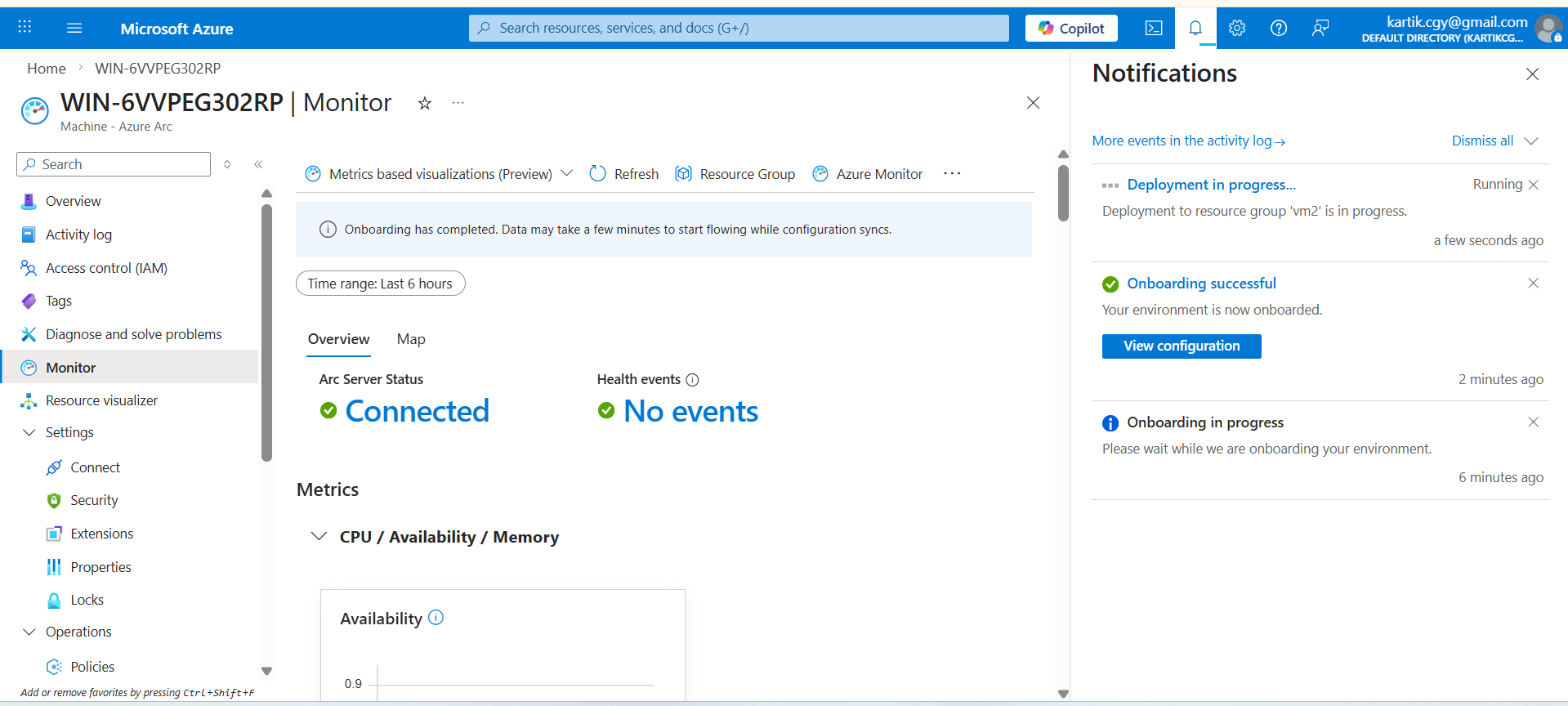
Enabled Change Tracking and Inventory via a Log Analytics workspace. Configured a Data Collection Rule for the Arc-connected server. Azure Monitor displays connected status and system metrics.
- Change Tracking enabled via Data Collection Rule ct-dcr-1447178160, reporting to a default Log Analytics workspace
- Monitor: Arc Server Status Connected · no active health events
- Notification feed shows the onboarding lifecycle end to end — in progress → onboarding successful → extension deployment